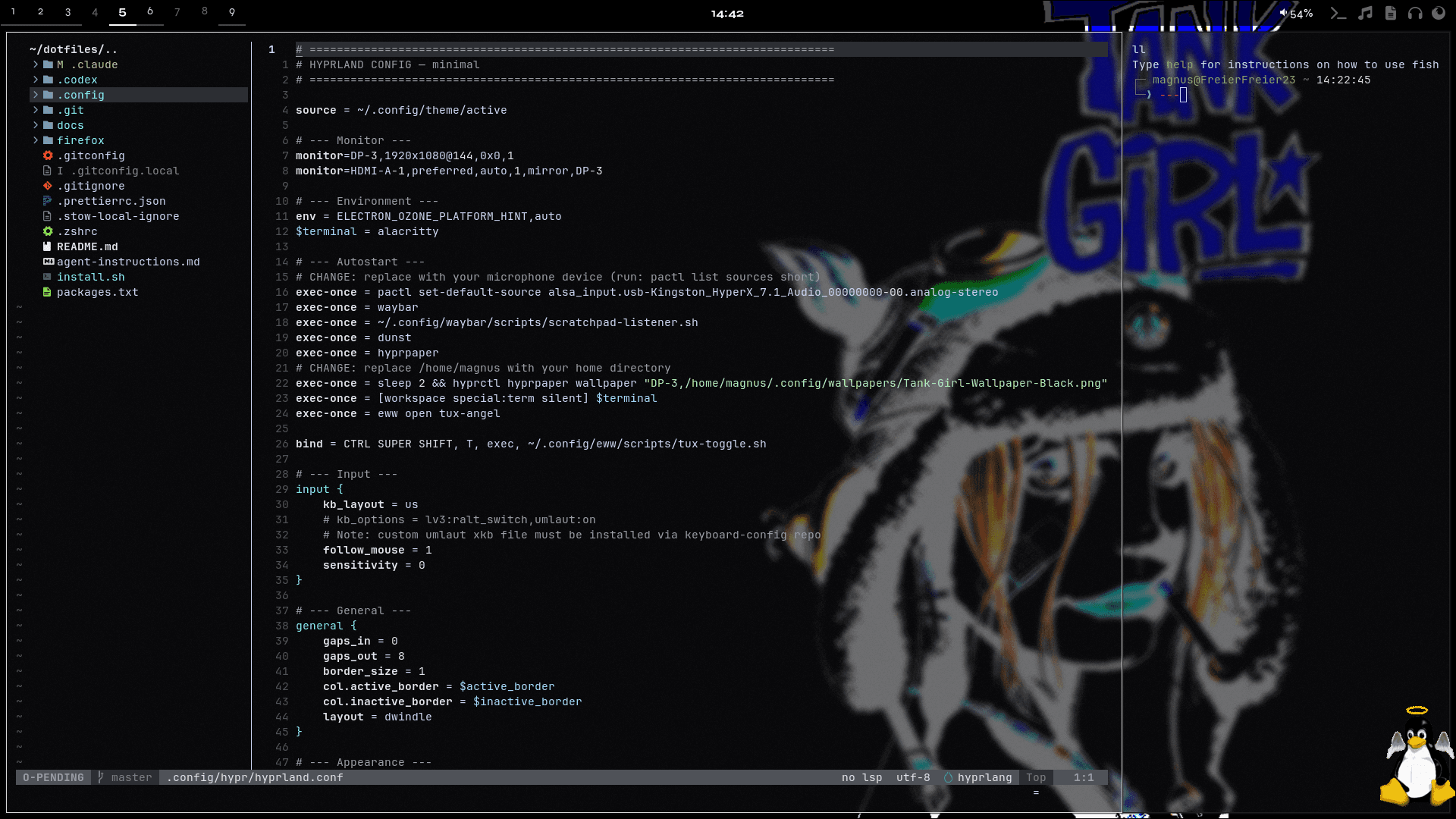
Setup Overview
This section documents the tools, configs, and workflows behind my daily setup. It combines real dotfiles, short tutorials, and practical context so the system is not just shown, but also explained.
The topics below cover the desktop, terminal, shell, notifications, widgets, Git, and supporting tools. Documentation files can be read as rendered guides, while config files stay available as raw source.
README.md
.config/nvim/README.md
Neovim Setup
Neovim is managed from ~/dotfiles/.config/nvim.
Layout
init.lualoads the core modules.lua/core/options.luacontains editor defaults.lua/core/ui.luacontains global UI settings.lua/core/plugins.luadeclares and configuresvim.packplugins.lua/core/keymaps.luacontains global keymaps.lua/core/lsp.luacontains language server and diagnostic behavior.
Features
- VSCode-like explorer through
nvim-tree. - File search, grep, LSP pickers, and diagnostics through
snacks.nvim. - TypeScript/JavaScript LSP through
typescript-language-server. - ESLint diagnostics and code actions through
vscode-eslint-language-server. - Rust LSP through
rust-analyzer. - Completion through
blink.cmp. - Auto-pairs through
nvim-autopairs. - Highlighted
TODO,FIXME, andNOTEcomments throughtodo-comments.nvim. - Inline Git hunks through
gitsigns.nvim. - Statusline through
lualine.nvim. - Mouse support and system clipboard integration are enabled.
Daily Keys
| Key | Action | | --- | --- | | F1 | Show keymap help | | Ctrl+B | Toggle file explorer | | Ctrl+P | Find files | | Ctrl+Shift+F | Grep files | | Ctrl+Shift+M | Show project problems | | Ctrl+Shift+O | Show symbols in current file | | Ctrl+Shift+G | Show Git workspace status, including submodules | | Alt+Shift+G | Show Git diff/hunks | | Alt+u | Previous function or class | | Alt+d | Next function or class | | F12 | Go to definition | | Shift+F12 | Find references | | F24 | Find references fallback when the terminal encodes Shift+F12 as F24 | | F2 | Rename symbol | | Ctrl+. | Code action | | K | Show hover information | | F4 | Show problem under cursor | | F8 | Next problem | | Shift+F8 | Previous problem | | F20 | Previous problem fallback when the terminal encodes Shift+F8 as F20 | | Ctrl+Space | Trigger completion manually | | Tab | Next completion item | | Shift+Tab | Previous completion item | | Enter | Accept completion item | | Esc | Close completion menu | | Alt+n | Next Git hunk | | Alt+p | Previous Git hunk | | Alt+h | Preview Git hunk | | Alt+s | Stage Git hunk | | Alt+r | Reset Git hunk |
Workflows
Project Navigation
Use Ctrl+B to open the file explorer. Git state is shown with simple markers:
MmodifiedSstaged?untrackedDdeletedRrenamedUconflictIignored
Use Ctrl+P when you know the filename and want to jump without opening the tree.
Search
Use Ctrl+Shift+F for project-wide grep. In the Snacks picker, toggle ignored files with Alt+i when you need to search node_modules or other ignored paths. Toggle hidden files with Alt+h when dotfiles are missing from the results.
TypeScript Navigation
Use F12 on a symbol to jump to its definition. Use Shift+F12 to list references. In Ghostty, Shift+F12 may arrive as F24, so both are mapped.
Use K for hover information and Ctrl+. for TypeScript, ESLint, Go, or Rust code actions. ESLint format-on-save and fix-on-save are intentionally disabled.
Diagnostics
Use Ctrl+Shift+M to open the Problems picker. Use F4 to expand the problem under the cursor. Use F8 and Shift+F8 to move through problems. In Ghostty, Shift+F8 may arrive as F20, so both are mapped.
Completion
Completion opens automatically while typing. Use Ctrl+Space to trigger it manually. Use Tab and Shift+Tab to move through suggestions, Enter to accept, and Esc to close the menu.
Git Hunks
Git hunks are changed line blocks compared to Git. gitsigns.nvim shows them in the sign column:
+added line~changed line-deleted line?untracked line
Use Alt+n and Alt+p to move between hunks. Use Alt+h to preview the current hunk, Alt+s to stage it, and Alt+r to reset it.
Use Ctrl+Shift+G to open a custom Snacks Git status picker for the root repo and recursive submodules. Use Alt+Shift+G to open changed hunks in the Snacks Git diff picker for the current repo.
Buffers
A buffer is a loaded file in Neovim memory. A window is only a view onto a buffer, so multiple windows can show the same buffer or different buffers.
Opening one file loads that file as a buffer. Referenced or imported files are not automatically opened as buffers, but the LSP can still know about them through the project root. Jumping to a definition in another file loads that target file as a new buffer.
Useful commands:
:ls- List open buffers:buffers- List open buffers:copen- Open quickfix list:cclose- Close quickfix list
Plugin State
vim.pack stores installed plugins under ~/.local/share/nvim/site/pack/core/opt and pins them in nvim-pack-lock.json.
When removing a plugin, remove it from plugins.lua, remove its lock entry, and delete its directory under site/pack/core/opt. Otherwise vim.pack may repair the lockfile and add the old plugin back.